My First Download
Quick Start got a torrent to 100%. This page does the same thing slowly, explaining every field, every screen, and every thing that can go wrong — and then keeps going, all the way to a renamed file sitting in a library that Plex can see.
If you already have a working stack, this is the page to actually learn on.
Overview
Purpose
By the end you will have done, deliberately and with understanding, every step of the acquisition loop once by hand. Everything automated later in the docs is just this loop with the manual steps removed.
When to use this page
| Use this page when… | Use another when… |
|---|---|
| It is your first ever download. | You want the 15-minute version → Quick Start. |
| A download is failing and you want to isolate which step. | You want the automated version → Automating TV shows. |
| You want to understand each field in the Add dialog. | You want the whole-system picture → Architecture Overview. |
Prerequisites
You must already have:
- A running stack — Quick Start Steps 1–4.
- An engine registered and marked Default on Downloads → Engines — Quick Start Step 5.
- Permission to add torrents (
torrents.add). The bootstrap admin has it. - Something legal to download.
Official Linux distribution ISOs (Ubuntu, Debian, Fedora, Arch) publish torrents on their download pages. They are fast, well-seeded, and unambiguously legal. Learn on those. What you point UltraTorrent at afterwards is entirely on you.
Concepts you will use
Four, all defined in Core Concepts:
- Engine — the thing that actually downloads. You registered one already.
- Save path — where on disk the engine writes. Must be inside the hard roots.
- Info hash — the torrent's identity. UltraTorrent uses it to refuse duplicates.
- Seeding — what a torrent does after it finishes: uploading to other peers.
Step-by-step
Step 1 — Get a torrent
You need one of three things:
| You have | Which tab you will use |
|---|---|
A magnet:?xt=urn:btih:… link | Magnet |
A link to a .torrent file (https://…/x.torrent) | URL |
A .torrent file already downloaded to your computer | File |
For a first run, copy a magnet link from an official Linux distribution's download page.
Expected result: a magnet link on your clipboard, starting with magnet:?.
A magnet starts with magnet:?xt=urn:btih: and contains the info hash
directly — there is no file to fetch. A torrent URL is an ordinary https://
link that returns a small binary .torrent file. UltraTorrent fetches that
server-side (never from your browser), through an SSRF guard.
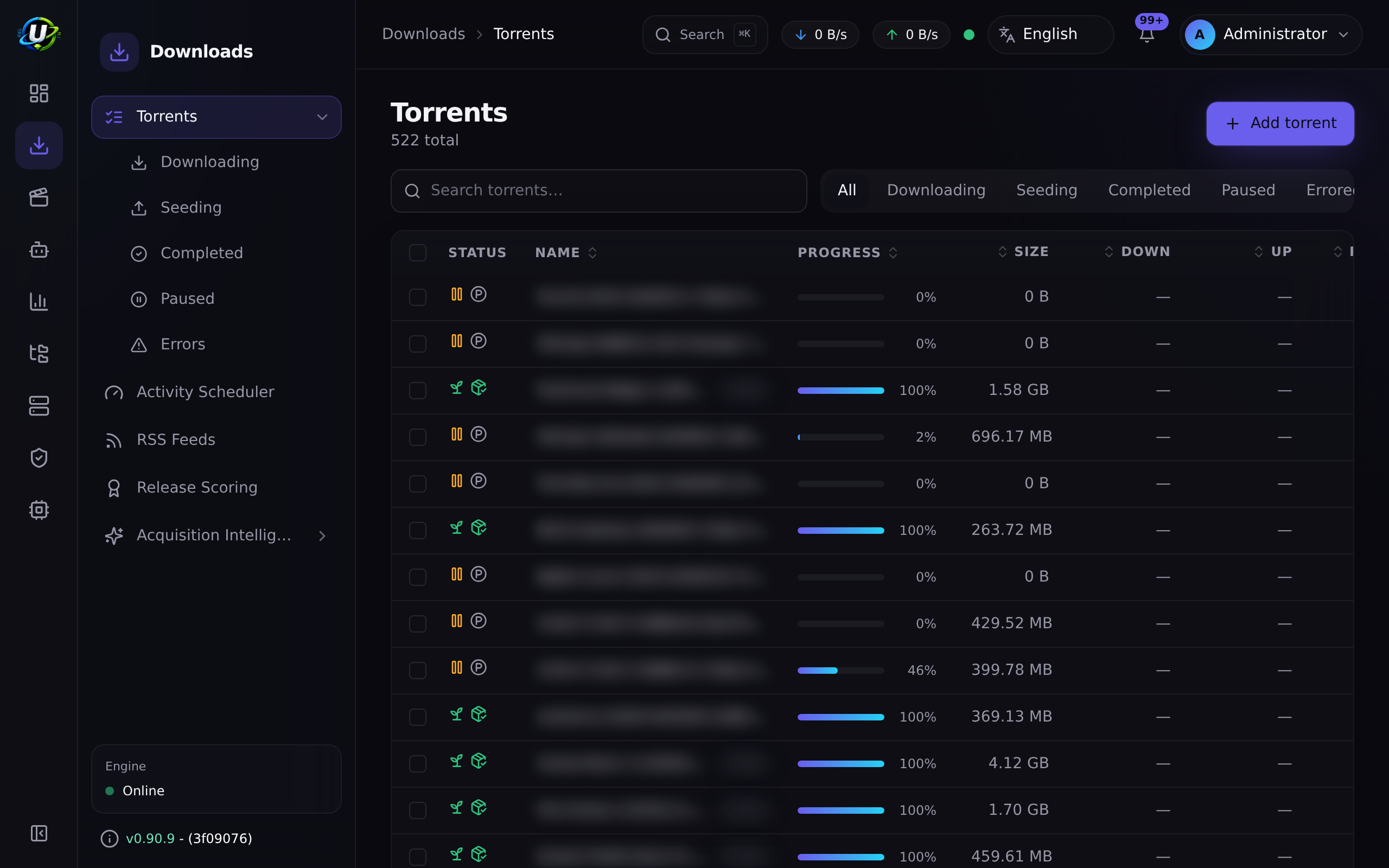
Step 2 — Open the Torrents page
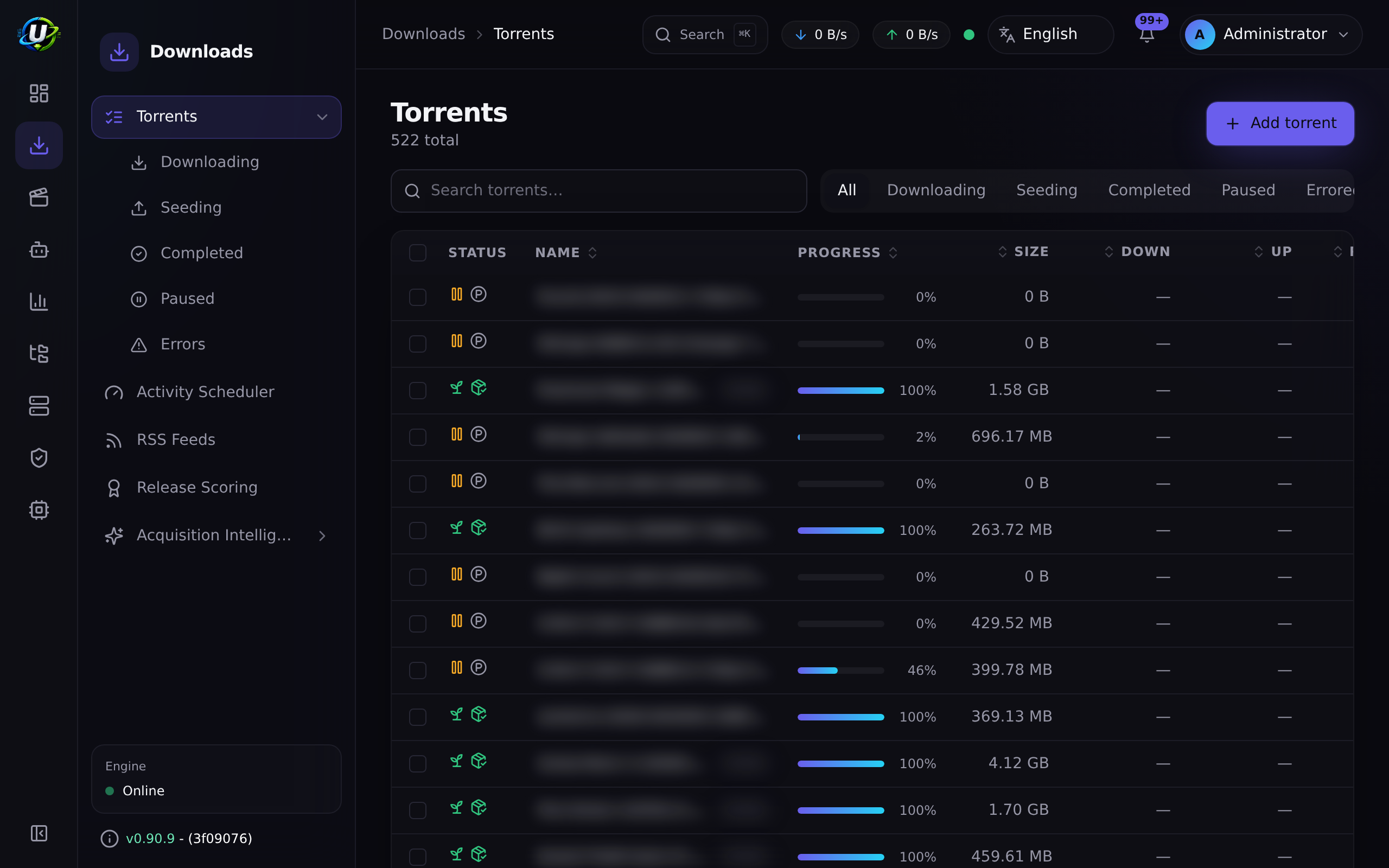
In the sidebar: Downloads → Torrents. The URL is /torrents.
Take a moment to read this screen, because you will live here:
| Thing on screen | What it means |
|---|---|
| The table | One row per torrent, live-updated over WebSocket. |
| The sidebar sub-menu | Downloading · Seeding · Completed · Paused · Errors — filtered views of the same table, driven by ?state=… in the URL, so they are bookmarkable. |
| The top bar rates | Live aggregate up/down across all engines. If these are moving, your sync loop is healthy. |
| The Add torrent button | Only visible if you hold torrents.add. |
Expected result: the Torrents page renders. If you have never downloaded anything it shows an empty state with an Add torrent call-to-action.
Step 3 — Open the Add torrent dialog
Click Add torrent.
The dialog has three tabs across the top — Magnet, URL, File — and a shared set of options below them.
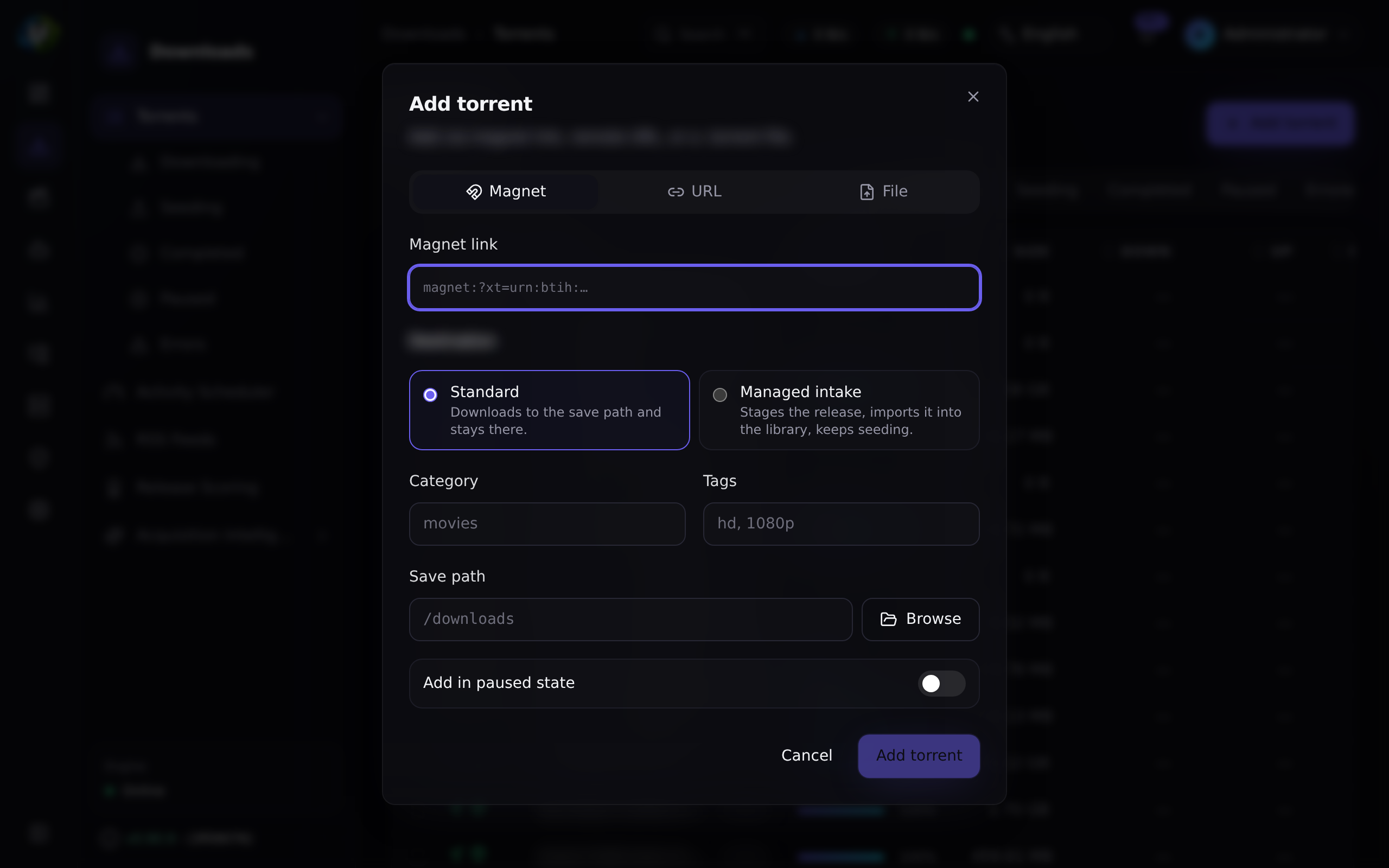
Expected result: the dialog is open on the Magnet tab.
Step 4 — Fill in the source
Pick the tab that matches what you have.
Magnet tab
Paste the magnet link. It must start with magnet:?xt=urn:btih:.
URL tab
Paste the https://…/something.torrent link. The backend fetches this, not
your browser.
The backend refuses to fetch a torrent URL that resolves to a private or internal IP — that is an SSRF guard, and it is protecting you. If your indexer is self-hosted on a private IP, you must allow it explicitly:
SSRF_ALLOW_HOSTS=prowlarr,indexer.lan,10.0.0.0/24
Keep prowlarr in the list if you use the bundled Prowlarr. Without this, grabs
fail with "Torrent URL resolves to a blocked internal address."
File tab
Click the drop zone to open a file picker, or drag a .torrent file onto it.
Expected result: the selected tab shows your magnet / URL / filename, and the Add button becomes enabled. (It stays disabled while the active tab is empty — that is intentional.)
Step 5 — Understand the options before you set them
Below the tabs are four options. All are optional. All are worth understanding.
| Option | What it does | What happens if you leave it blank |
|---|---|---|
| Save path | The directory the engine writes into. Must be inside the hard roots (FILE_MANAGER_ROOTS, default /downloads). | The engine's own default is used — /downloads in the bundled stack. |
| Category | A label used for filtering and for automation conditions. | No category. |
| Tags | Comma-separated free-form labels. | No tags. |
| Start paused | Add the torrent but do not begin transferring. | It starts immediately. |
Save paths are what connect a download to a library. The media pipeline only
organises a completed torrent when an enabled library's root path contains the
torrent's save path. If you dump everything in /downloads and later create a
library at /downloads/movies, none of your existing downloads will be picked up.
A layout that works from day one:
/downloads
├── movies/     ← a Movies library points here
├── tv/         ← a TV library points here
└── other/      ← everything you do not want organised
If you type a save path that does not exist, UltraTorrent validates it against the hard roots and offers to create it for you. Accept.
Expected result: your options are set, and the Add button is enabled.
Step 6 — Add it
Click Add.
Expected result — three things, in this order, within a couple of seconds:
- A success toast appears.
- The dialog closes.
- A new row appears in the table without you refreshing anything.
That third one matters. It means the backend accepted the torrent, handed it to the engine, the sync loop saw it on its next ~2-second poll, and pushed it to your browser over WebSocket. If the row appears, your entire pipeline is working.
You are trying to add a torrent whose info hash is already known. That is deduplication doing its job — the same release under a different magnet, a re-post, or a second feed is still the same torrent. Look for it in the existing list.
Step 7 — Watch it transfer
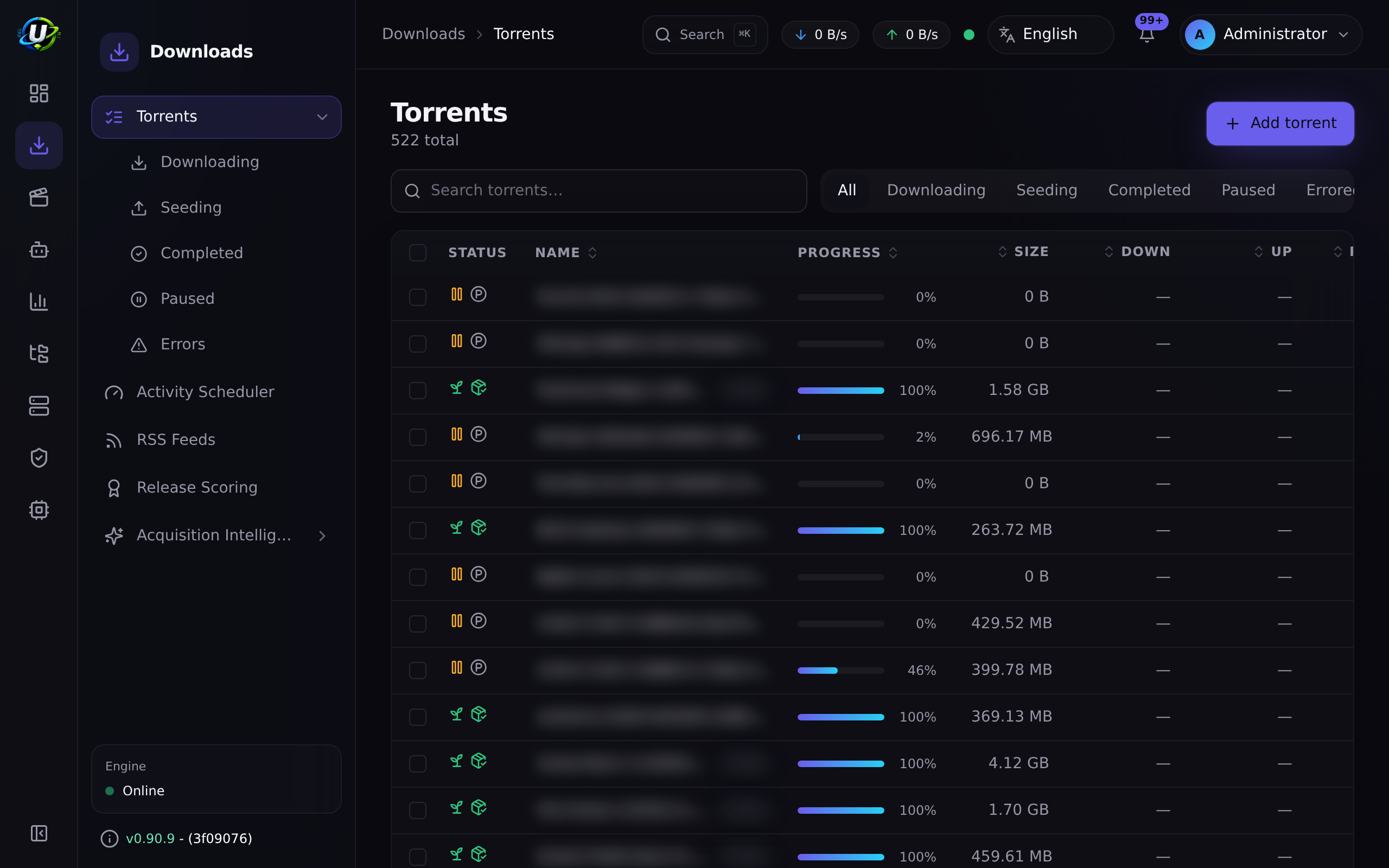
Stay on the Torrents page. In the first few seconds you should see, in order:
| Column | What to expect | If it does not happen |
|---|---|---|
| State | Queued → Downloading | Engine unreachable, or Start paused was on. |
| Peers / Seeds | Climbs above 0 | Dead torrent, tracker down, or no peers. |
| Down rate | A non-zero number | No peers yet — give it 30 seconds. |
| Progress | Climbs from 0% | See above. |
| ETA | Appears once a rate is established | — |
The top bar's aggregate rate should move at the same time.
Probably not — most likely there are no peers yet. Before you debug anything:
- Wait a full 60 seconds.
- Confirm the torrent is not Paused.
- Try a different, well-known torrent (a current Ubuntu ISO). If that one moves, the first torrent was simply dead.
- On the bundled rTorrent, DHT is off by default (
RT_DHT=off) because that build can crash on a DHTinternal_error. Trackers and PEX still find peers, but a magnet with no working tracker and no PEX peers will sit at 0% forever. SetRT_DHT=onto enable it, or use the qBittorrent profile.
Step 8 — Inspect the torrent while it runs
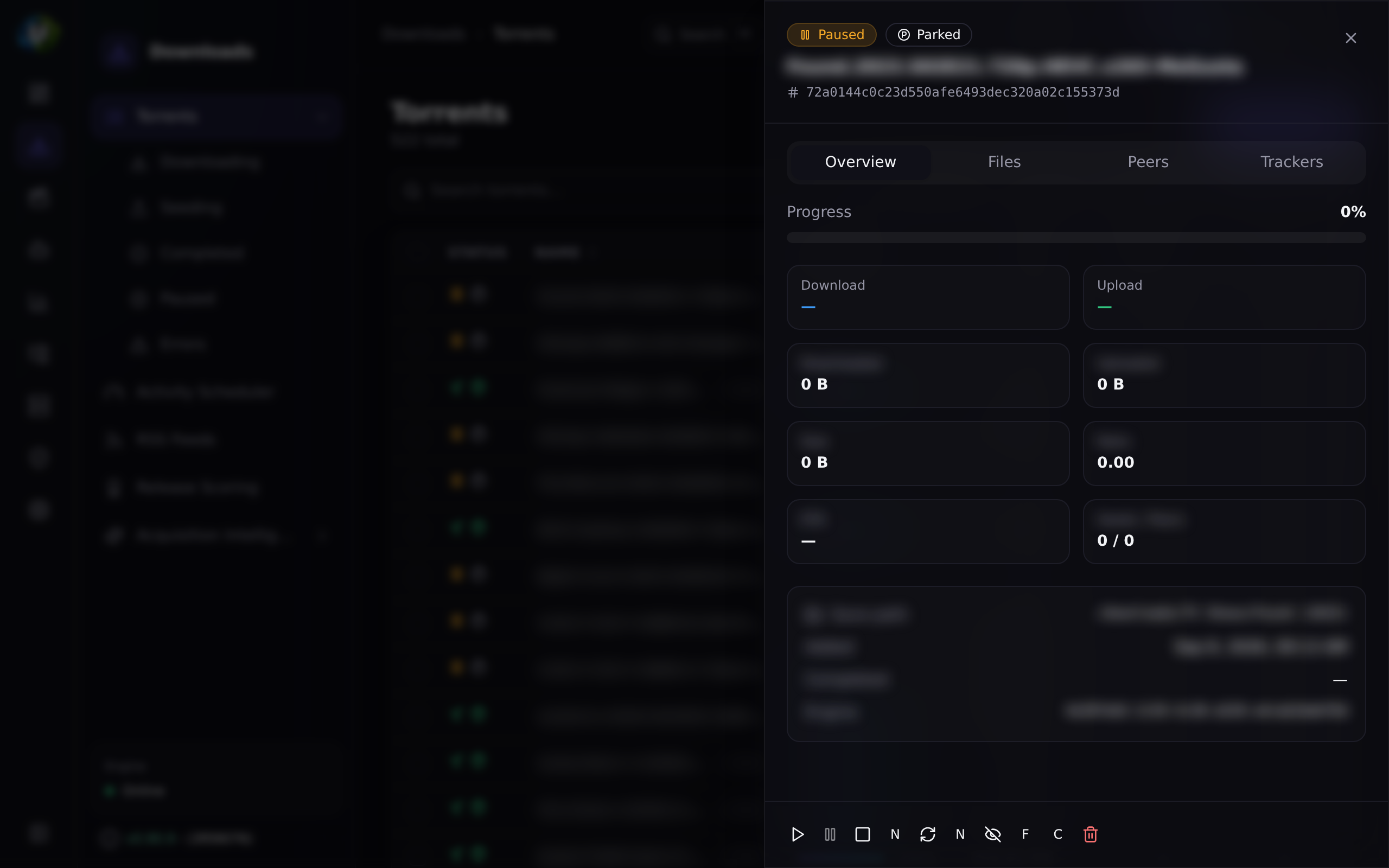
Click the torrent row. A drawer slides in with four tabs:
| Tab | What it gives you |
|---|---|
| Overview | Size, progress, rates, ratio, save path, category, tags. |
| Files | Every file, with individual priorities. Set a file to skip and the engine will not download it — useful for a season pack when you only want two episodes. |
| Peers | Who you are connected to. Zero peers explains a stuck torrent instantly. |
| Trackers | The announce URLs and their last response. A tracker error here explains the other kind of stuck torrent. |
The actions bar gives you resume, pause, stop and recheck.
It re-hashes the data on disk and compares it to the torrent's piece hashes. Use it when a torrent errored, when you moved files under it, or when progress looks impossible. It is safe — it never deletes anything.
Step 9 — It completes
At 100% the torrent moves to Seeding.
Under the hood, three things happen the moment progress crosses 100%:
Expected result: state = Seeding, progress = 100%, and the ratio starts climbing as you upload to other peers.
Two reasons:
- Seeding is how BitTorrent works. Many private trackers require a minimum ratio or seed time, and stopping instantly can get you banned.
- Deleting a torrent can offer to delete its data — including the file you are
about to organise. If you use
rename_movemode, the file is gone from the engine anyway; if you usehardlink(the default), the bytes survive in both places and you can seed forever.
Step 10 — Verify the bytes actually exist
Do not trust the progress bar. Go and look.
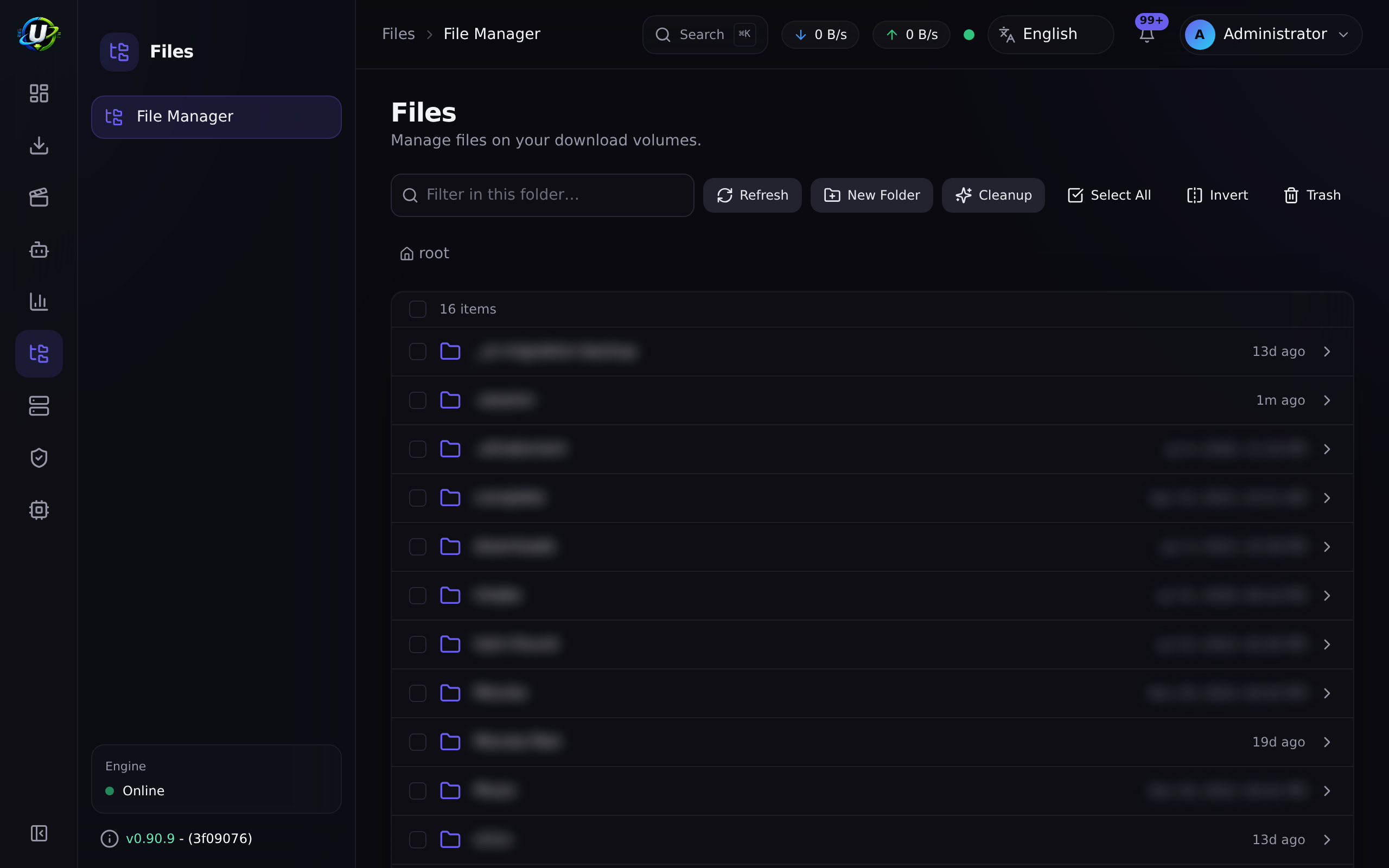
Files → File Manager (/files).
Navigate to your save path (/downloads, or the subfolder you chose). You should
see the downloaded folder and its files, with real sizes.
The File Manager is confined to the hard roots (FILE_MANAGER_ROOTS). It can
browse, preview, download, rename, move, copy, make directories, and delete to a
trash — and it is physically incapable of escaping those roots. Traversal,
symlink-escape and absolute-escape are all rejected.
Expected result: your file, at its full size, at the path you expect.
Step 11 — Organise it into a library
Right now you have a file with an ugly scene name. Let us make it a library entry.
-
Go to Media Management → Libraries (
/media/libraries). -
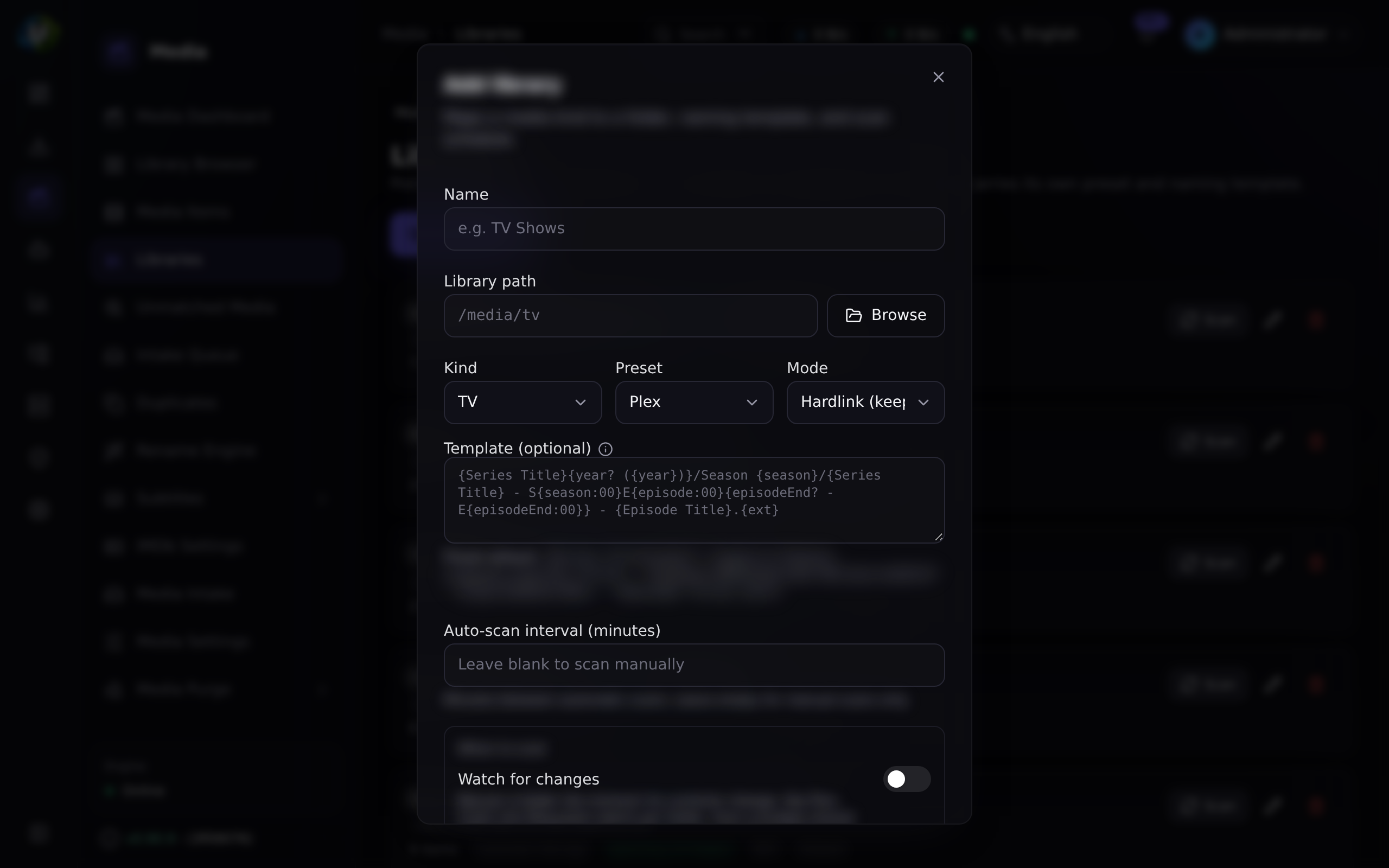
Click Add library.
-
Fill it in:
Field For this walkthrough Notes Name MoviesYours. Path /downloads/moviesMust be inside the hard roots. The path picker will offer to create it. Kind movieAuthoritative over filename guessing. Preset plexFills the naming template for you. Mode previewStart here. Dry-run only — it touches nothing. Template (leave blank) The preset supplies it. Scan interval (leave blank) Blank = manual scans only. Set it later. -
Save, then click Scan.
Expected result: the scan discovers your file, creates a media item, and
identifies it — parsing the release name into type/title/year with a confidence
score. Look at Media Management → Media Items (/media/items).
Step 12 — Preview the rename, then commit
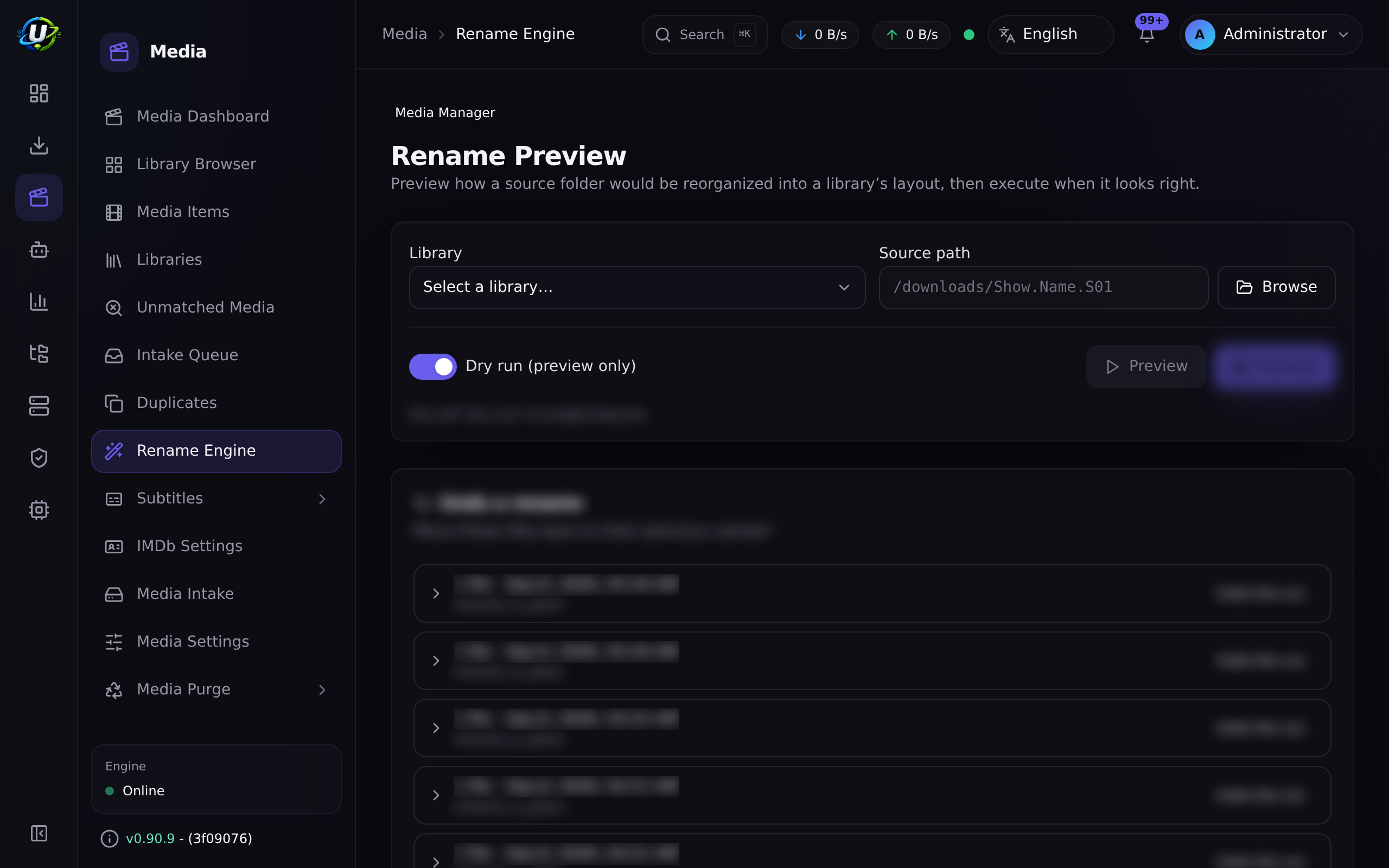
Go to Media Management → Rename Engine (/media/rename-preview).
This builds the full rename plan — every source path, every destination path — and changes nothing. Read it. Every path segment is sanitized.
If it looks right:
- Go back to Media Management → Libraries.
- Edit the library and change Mode from
previewtohardlink. - Re-run the operation.
| Mode | Disk cost | Can you still seed? |
|---|---|---|
hardlink (default) | None | ✅ Yes — same bytes, two names |
copy | 2× the file | ✅ Yes |
symlink | None | ✅ Yes, but some servers do not follow symlinks |
rename_move | None | ❌ No — the engine loses the file |
hardlink requires the download path and the library path to be on the same
filesystem. In the bundled stack they are (one downloads volume). If you
mounted /media from a different volume, hardlinking will fail and you must use
copy.
Expected result: the file now exists at a clean library path
(/downloads/movies/Some Movie (2024)/Some Movie (2024).mkv) and the engine
is still seeding the original — because a hardlink is two names for the same bytes.
Step 13 — Let your media server see it
If you have Plex, Jellyfin, Emby or Kodi:
- Go to Media Management → Media Settings (
/media/settings), which hosts Metadata Providers, Artwork, Subtitles, NFO tooling and Media Server Integrations. - Add your server: kind, base URL, and token. The secret is AES-GCM encrypted at rest and redacted in every API response.
- Test the connection.
From now on, the post-download pipeline pushes a library refresh to that server automatically, so new media appears without you touching it.
Expected result: your first download appears in Plex/Jellyfin/Emby, correctly named, with a poster.
Video coming soon.
Examples
The same download, entirely from the API
Everything above is REST. Get a token, then:
# 1. Add by magnet
curl -X POST http://localhost:8080/api/torrents \
  -H "Authorization: Bearer $TOKEN" \
  -H 'Content-Type: application/json' \
  -d '{
        "magnet": "magnet:?xt=urn:btih:...",
        "savePath": "/downloads/movies",
        "category": "movies",
        "tags": ["first-download"]
      }'

# 2. Watch it
curl -s http://localhost:8080/api/torrents \
  -H "Authorization: Bearer $TOKEN"
See the API reference for the full surface.
A folder layout that will not fight you later
/downloads
├── movies/           ← Movies library (kind: movie, preset: plex, mode: hardlink)
├── tv/               ← TV library     (kind: tv,    preset: plex, mode: hardlink)
├── anime/            ← Anime library  (kind: anime)
└── unsorted/         ← no library — nothing here is ever auto-organised
Set the torrent's save path to the right subfolder when you add it, and the post-download pipeline picks it up automatically.
Troubleshooting
| Symptom | Cause | Fix |
|---|---|---|
| Add button stays disabled | The active tab is empty. | Fill the tab you are actually on — the dialog validates per-tab. |
| "Torrent already exists" | Same info hash already added. | It is already in your list. This is deduplication working. |
| Row never appears after adding | The engine rejected it, or the WebSocket is down. | Check the connection indicator in the top bar; check docker compose logs backend. |
| Stuck at 0%, 0 peers | Dead torrent / dead tracker / no DHT. | Try a known-good Linux ISO. On bundled rTorrent, DHT is off by default — set RT_DHT=on or switch to qBittorrent. |
| "Torrent URL resolves to a blocked internal address" | SSRF guard blocked a private-IP indexer. | Add the host to SSRF_ALLOW_HOSTS (keep prowlarr). |
| Save path rejected | Outside FILE_MANAGER_ROOTS. | Use a path inside /downloads (or whatever your roots are). |
| Downloaded, but nothing was organised | No enabled library whose root contains the save path. | Create the library, or move the download, then rescan. |
| Media item shows as unmatched | The release name did not parse confidently. | Fix it on Unmatched Media (/media/unmatched) — or rename the source file more conventionally. |
| A TV show fragmented into one item per episode | Files not laid out as Show/Season NN/episode. | The series title is taken from the show folder for episodic layouts. Restructure, then rescan. |
| Hardlink failed | Download and library are on different filesystems. | Use copy, or put both on one volume. |
Files owned by root | The engine ran as root. | Set PUID/PGID in .env to the owning user (id someuser), recreate the engine container. |
| Plex does not show it | Wrong base URL/token, or Plex cannot see that path. | Re-test the integration; confirm Plex's own library path points at the same directory. |
Tips
A category is free to set and becomes an automation condition later —
"when a torrent in category movies completes, move it". Retrofitting them is
tedious.
Adding a season pack for two episodes? Open the torrent, go to Files, and set everything else to skip. The engine will not download what you skipped.
Scanning, identifying, renaming, artwork and the media-server refresh all run as background jobs with live progress over WebSocket. If a screen looks like it is doing nothing, look for the job — it is probably running.
preview mode exists precisely so your first rename cannot hurt you. Use it.
FAQ
Where did my file actually go?
Whatever Save path you set — or the engine's default (/downloads) if you left
it blank. Confirm in the File Manager (/files).
Can I move a torrent after it started?
Yes, but not from the torrent drawer today — there is a POST /api/torrents/:hash/move
endpoint (see the API reference), and move is also available as an
automation action. Either way, relocate the data through UltraTorrent so the
engine is told about it. Never move files behind the engine's back — it will error
and you will have to recheck.
Should I stop seeding once it is done?
That is your call and your tracker's rules. Build a rule in Automation on the
ratio.reached trigger to stop or remove it automatically once you have given
back enough.
Why did nothing get renamed? The post-download pipeline is opt-in by path: it fires only for enabled libraries whose root contains the torrent's save path. Arbitrary downloads are deliberately never touched.
What is an NFO file and do I want one? A Kodi-style XML sidecar describing the media. Media servers read them. UltraTorrent generates them (movie/tvshow/season/episode) as the last enrichment stage, inside the hard roots only. Harmless if your server ignores them.
Do I have to do all this by hand every time? No — that is the entire point of the rest of the docs. See Workflows and the Tutorials.
Checklist
Verification
- The Add torrent dialog opened and the correct tab accepted my source.
- A row appeared in the table without a page refresh.
- Progress climbed and the down rate was non-zero.
- The torrent reached 100% and switched to Seeding.
- The ratio started climbing.
- I found the real bytes in the File Manager at the expected path.
- A library scan discovered the file and created a media item.
- The item's
matchStatusismatched(notunmatched). - The rename preview showed a sensible destination path.
- After switching to
hardlink, the file exists at the clean path and the torrent is still seeding. - (Optional) My media server shows it.
Expected results
| Screen | Expected |
|---|---|
/torrents | 1 torrent, 100%, Seeding, ratio > 0 |
/files | The real file, full size, in the save path |
/media/items | 1 media item, matched, with a title and year |
/media/rename-preview | A source → destination plan you agree with |
| Plex / Jellyfin | The title, with a poster |
Next steps
- Stop doing this by hand → Workflows
- Build a real library → Building a movie library
- Never miss an episode again → Automating TV shows
See also
- Torrents — the full transfer-management module.
- Files — the path-safe file manager.
- Media Manager — libraries, identification, rename engine.
- Engines — engine configuration and the engine seam.
- Automation — triggers and actions.
- Troubleshooting · FAQ · Glossary