Quick Start
Zero to a first working download in roughly 15 minutes.
Overview
UltraTorrent is a self-hosted media acquisition and management platform. It is not just a torrent client: it wraps a real BitTorrent engine (rTorrent or qBittorrent), adds indexer search, RSS automation, missing-episode detection, media identification and renaming, media-server integration, and role-based access control — all behind one web UI and one REST API.
This page gets the whole stack running and walks you to a torrent that reaches 100%. It does not try to configure everything. Deeper setup lives in Core Concepts and the Tutorials.
Purpose
By the end of this page you will have:
- The full stack running under Docker Compose (PostgreSQL, Redis, backend, frontend).
- A BitTorrent engine registered and reporting as connected.
- An administrator account you can log into.
- At least one torrent downloading, and then completed.
When to use this page
| Use Quick Start when… | Use something else when… |
|---|---|
| You are evaluating UltraTorrent for the first time. | You need a production install behind TLS → Reverse proxy and TLS. |
| You want the shortest path to a working download. | You want every Compose service and volume explained → Docker Compose install. |
| You are on a Linux host, a NAS, or a VM with Docker. | You are upgrading an existing install → Upgrading. |
Prerequisites
Before you start, confirm all of the following.
| Requirement | Why | How to check |
|---|---|---|
| Docker Engine with the Compose v2 plugin | The whole stack ships as containers. | docker --version and docker compose version |
| ~2 GB RAM free | PostgreSQL + Redis + backend + engine. | free -h |
| Disk space for downloads | Torrents land in a Docker volume by default. | df -h |
| A free host port | The web UI publishes on 8080 by default. | ss -ltn (look for :8080) |
openssl | Used to generate the required secrets. | openssl version |
| A legal torrent to test with | You need something to download. | See Step 7 |
Install Docker Engine and the Compose plugin from the official Docker documentation for your distribution first. Docker Desktop on macOS and Windows also ships Compose v2. UltraTorrent also runs from source on Node.js 20+, but Docker is the supported, first-class path.
UltraTorrent is a general-purpose acquisition tool. What you point it at is entirely your responsibility. Use Linux distribution images, Creative Commons media, or your own content while you are learning.
Concepts you need for the next 15 minutes
You only need four ideas to finish this page. Every term is defined properly in Core Concepts.
- Engine — the BitTorrent client that actually moves bytes (rTorrent or qBittorrent). UltraTorrent drives it; it never talks to peers itself.
- Indexer — a searchable catalogue of torrents (a Torznab/Newznab endpoint, typically served by Prowlarr or Jackett). Optional for a first manual download, required for automated acquisition.
- Torrent — one transfer, with a lifecycle (queued → downloading → seeding).
- Library — a folder UltraTorrent scans, identifies, renames and organises. Not needed today; covered in Building a movie library.
Step-by-step
Step 1 — Get the code and pick a folder
git clone https://github.com/ultratorrentofficial/ultratorrent.git
cd ultratorrent
Expected result: a folder containing docker-compose.yml, .env.example,
apps/, and docs/.
ls docker-compose.yml .env.example
Both files must exist. If they do not, you are in the wrong directory.
Step 2 — Create your .env and generate secrets
Compose is deliberately fail-closed: it will not start without a database password and an admin password, and the backend refuses to boot in production if the JWT and encryption secrets are unset, weak, or identical.
cp .env.example .env
Now generate three distinct secrets:
openssl rand -base64 48   # → JWT_ACCESS_SECRET
openssl rand -base64 48   # → JWT_REFRESH_SECRET
openssl rand -base64 48   # → ENCRYPTION_KEY
Edit .env and fill in five values:
# Alphanumeric only — this value is interpolated into a DATABASE_URL,
# so URL-special characters would need percent-encoding.
POSTGRES_PASSWORD=ChangeMeToSomethingLongAndAlphanumeric

# Each at least 32 characters. JWT_ACCESS_SECRET and ENCRYPTION_KEY MUST differ.
JWT_ACCESS_SECRET=<paste openssl output #1>
JWT_REFRESH_SECRET=<paste openssl output #2>
ENCRYPTION_KEY=<paste openssl output #3>

# The bootstrap super-admin created on first seed.
ADMIN_PASSWORD=YourStrongAdminPassword
ENCRYPTION_KEY encrypts secrets at rest — 2FA/TOTP secrets, indexer API keys,
media-server tokens. Changing it later
invalidates everything already encrypted with it. Generate it once, store it in
a password manager, and back it up with your database.
8080 is a busy port on NAS devices. Set FRONTEND_PORT=8090 (or any free port)
in .env now — it is much easier than changing it later.
Expected result: .env exists, is not committed to git, and every one of the
five values above is non-empty.
grep -E '^(POSTGRES_PASSWORD|JWT_ACCESS_SECRET|JWT_REFRESH_SECRET|ENCRYPTION_KEY|ADMIN_PASSWORD)=' .env
Every line printed must have something after the =.
Step 3 — Choose a torrent engine and start the stack
UltraTorrent does not contain a BitTorrent engine. It drives one. Two are bundled as optional Compose profiles:
| Profile | Engine | Choose it when… |
|---|---|---|
rtorrent | rTorrent 0.9.8 (SCGI over TCP) | You want the smallest footprint and a modest number of torrents. |
qbittorrent | qBittorrent (Web API) | You expect a large library. rTorrent 0.9.8 can crash under high torrent counts. |
Start the stack with an engine profile. For qBittorrent (recommended):
docker compose --profile qbittorrent up -d --build
Or, for the bundled rTorrent:
docker compose --profile rtorrent up -d --build
The first build takes several minutes. The backend runs prisma migrate deploy
and seeds permissions, system roles, the admin user and default settings on
first boot.
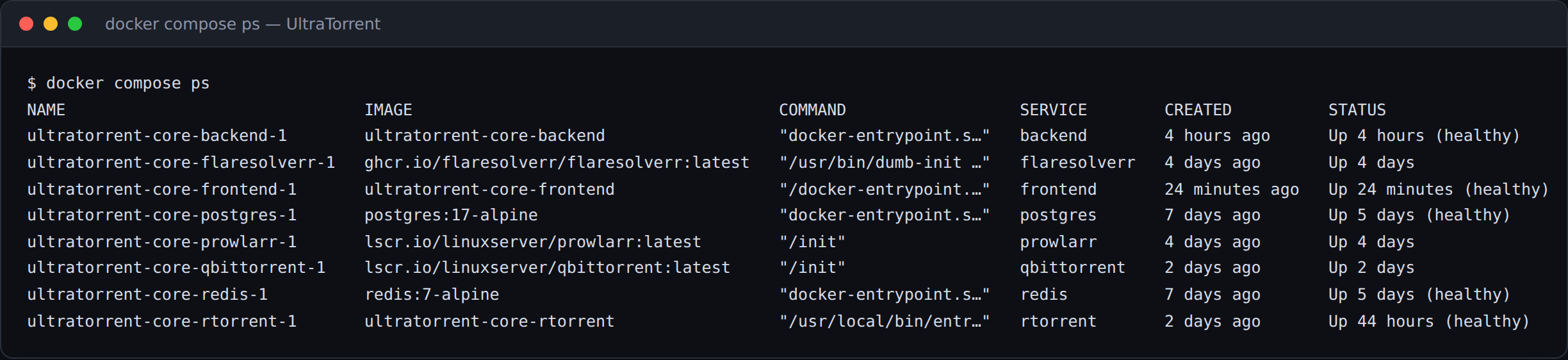
Expected result: all containers healthy.
docker compose ps
You should see postgres, redis, backend, frontend (and your engine)
running. Then confirm the API is alive:
docker compose logs backend --tail 30
Look for a successful Nest bootstrap with no refuses to boot error. If the
backend exits immediately, jump to Troubleshooting.
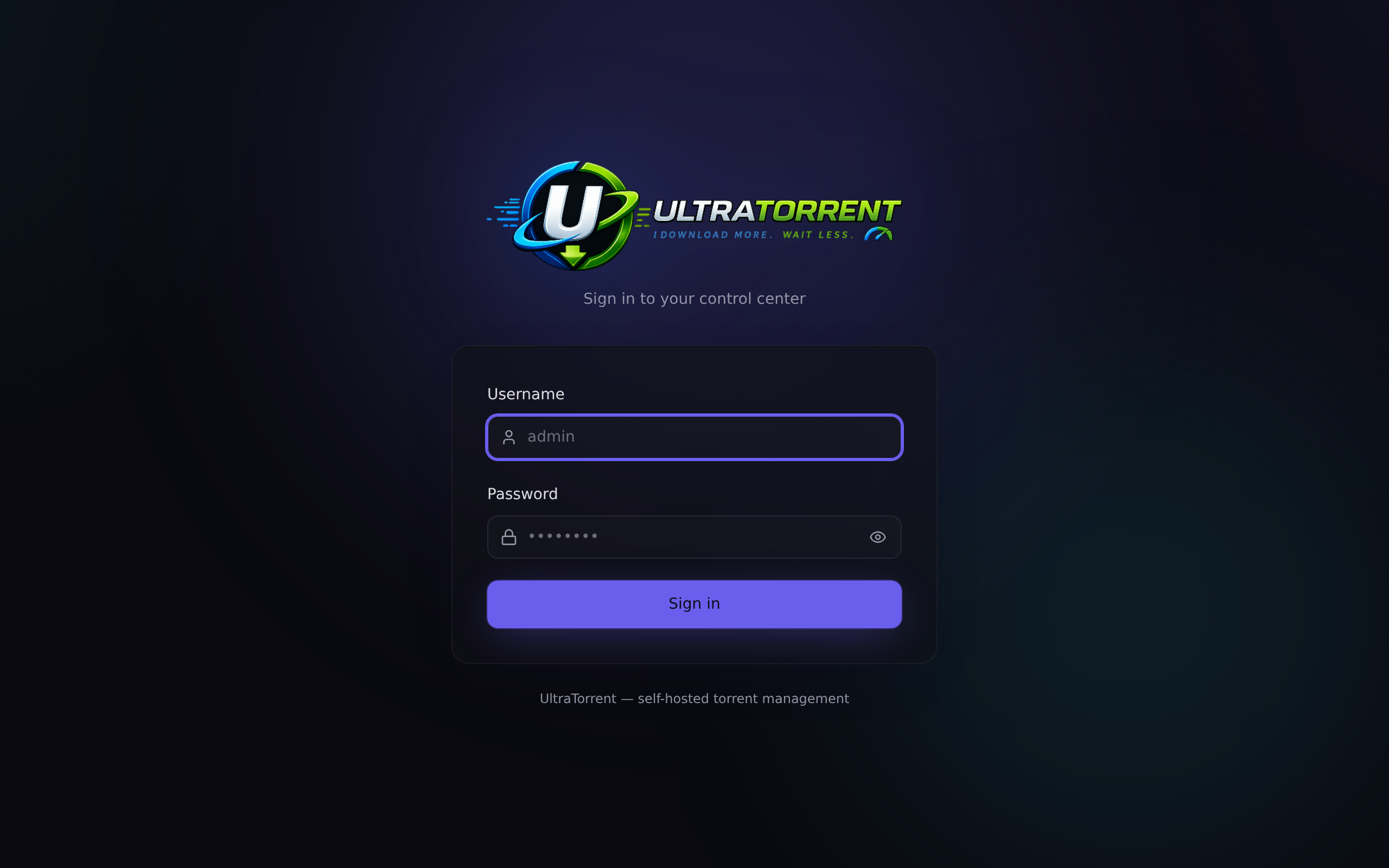
Step 4 — Log in for the first time
Open the web UI:
http://localhost:8080
(Replace localhost with your server's IP or hostname if it is remote, and 8080
with your FRONTEND_PORT if you changed it.)
Sign in with:
- Username: the value of
ADMIN_USERNAME(defaultadmin) - Password: the value of
ADMIN_PASSWORDyou set in Step 2
Expected result: you land on the Dashboard, with a left sidebar grouped into Overview, Downloads, RSS & Acquisition, Media Management, Media Server Analytics, Automation, Files, Administration and Account.
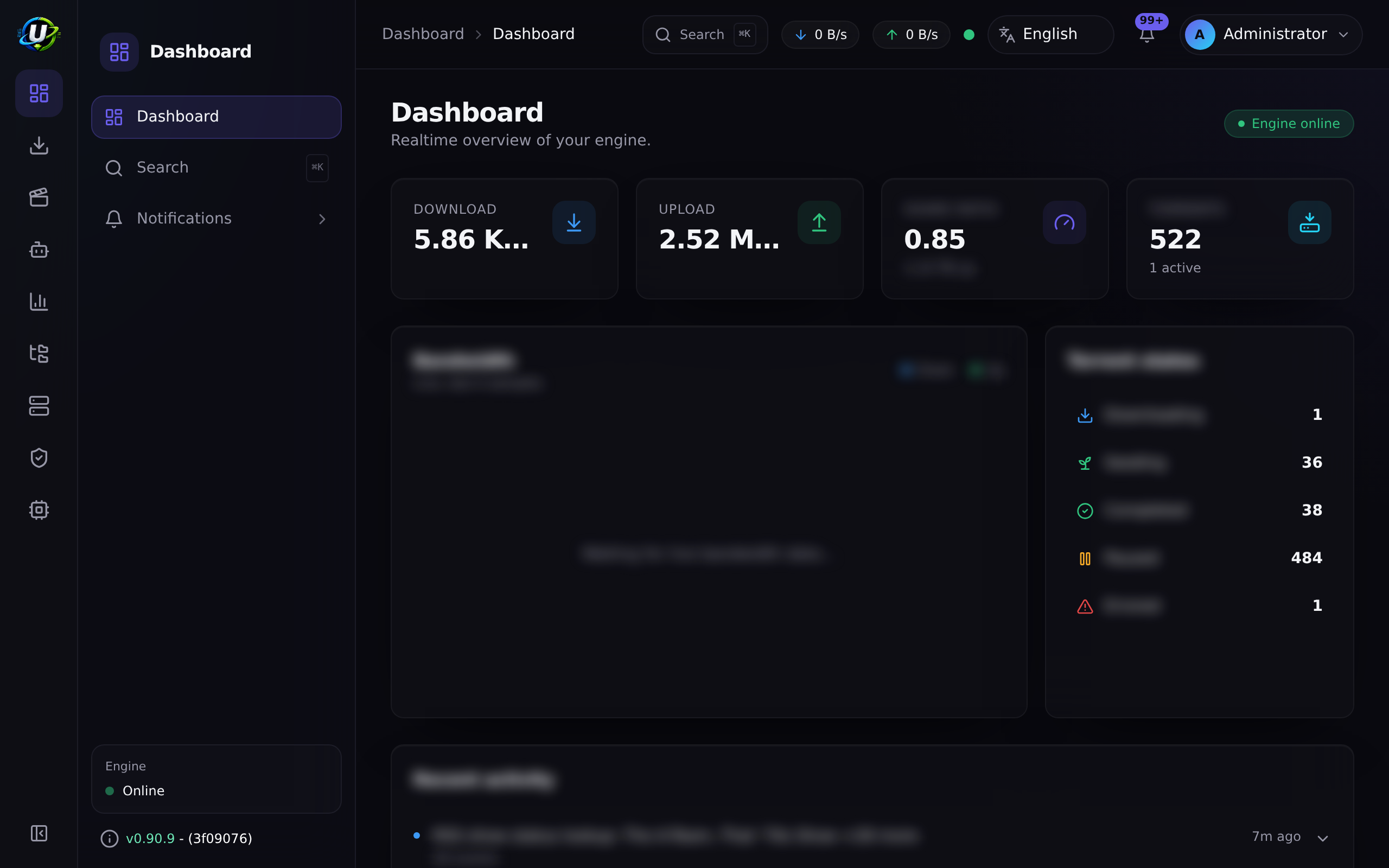
The command palette searches every page you have permission to see. It is the fastest way to navigate and it never shows you a page you cannot open.
Step 5 — Register your torrent engine
The container is running, but UltraTorrent does not know about it yet. You must register it once.
-
In the sidebar go to Downloads → Engines (
/engines). -
Click Add engine.
-
Fill it in for the engine you started in Step 3:
If you chose qBittorrent:
Field Value Kind qBittorrentBase URL http://qbittorrent:8080Username adminPassword the qBittorrent Web UI password qBittorrent generates a temporary password on first run. Get it with:
docker compose logs qbittorrent | grep -i "temporary password"Open
http://localhost:8081, log in withadmin+ that temporary password, and set a permanent password in Options → Web UI. Use that permanent password in UltraTorrent.If you chose rTorrent:
Field Value Kind rTorrentMode SCGI (TCP)Host rtorrentPort 5000 -
Click Test and confirm the connection succeeds.
-
Save, then click the Set default action on the new engine.
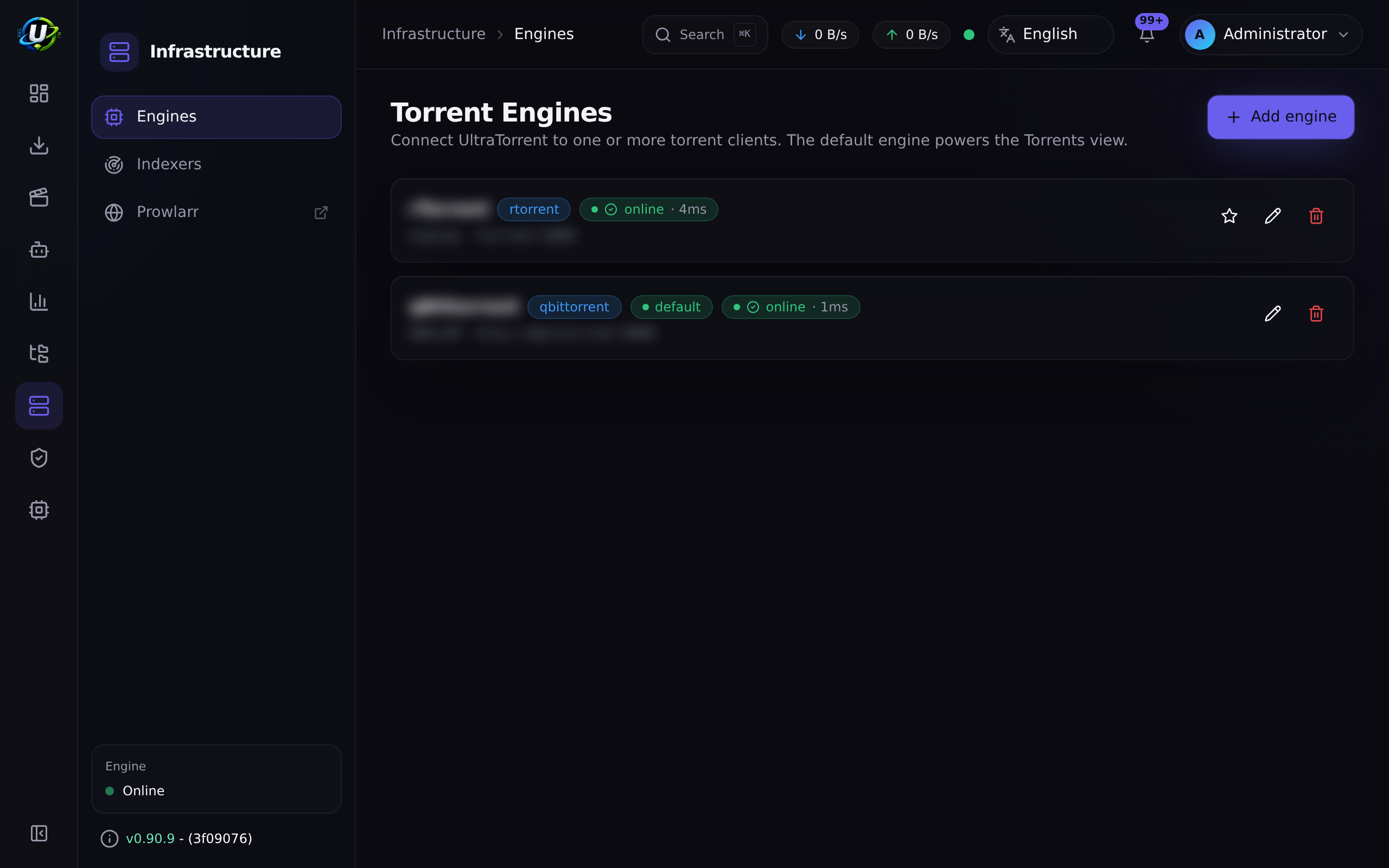
Expected result: the engine appears in the list with a Default badge and a connected status. The top bar begins showing live transfer rates (0 B/s for now), which means the sync loop is polling the engine successfully.
localhostInside the Docker network the backend reaches the engine at qbittorrent:8080
or rtorrent:5000. localhost from inside the backend container means the
backend container itself and will always fail.
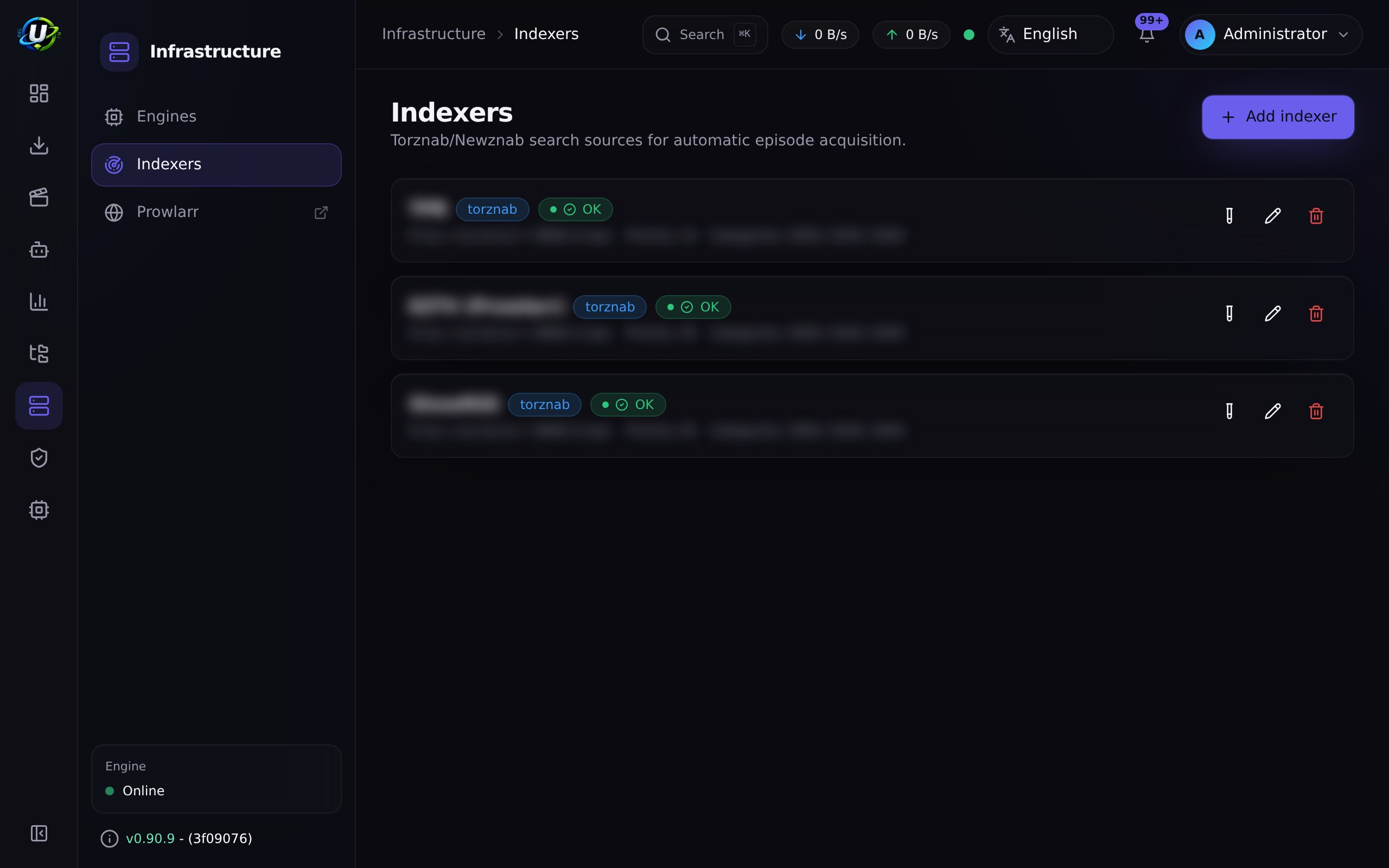
Step 6 — Add an indexer (optional today, essential later)
An indexer is a Torznab/Newznab search endpoint. UltraTorrent uses indexers to search for releases when automation needs them — for example when Smart Download tries to fill a missing episode.
UltraTorrent's Search entry (and Ctrl+K) searches the application's own navigation, not indexers. Indexer search is consumed by the acquisition pipeline (Missing Episodes' Search now, the scheduled auto-acquire sweep) and by the REST API. To browse indexers by hand, use the Prowlarr UI. You can skip this whole step and still complete Step 7.
The easiest source of indexers is the bundled Prowlarr companion container:
docker compose --profile qbittorrent --profile prowlarr up -d
Then:
-
Open Prowlarr at
http://localhost:9696, add one or more indexers there, and copy an indexer's Torznab feed URL and Prowlarr's API key. -
In UltraTorrent, go to Downloads → Indexers (
/indexers). -
Click Add indexer and fill in:
Field Meaning Example Name Display name Prowlarr — MyIndexerImplementation torznabornewznabtorznabBase URL The API base http://prowlarr:9696/1/apiAPI key Stored AES-256-GCM encrypted; never returned by the API (paste) Categories Newznab categories to query 5000, 5030, 5040(TV)Min seeders Optional floor; candidates below it are dropped 5Priority Lower is tried first 1 -
Click the Test button (the flask icon). It runs a
t=capscapability negotiation.
Expected result: the indexer shows an OK status badge and a
lastTestedAt timestamp. The API key field now shows a mask (••••••••) — that
is correct; the key is never sent back to the browser.
SSRF_ALLOW_HOSTSThe backend blocks torrent URLs that resolve to private/internal addresses
(an SSRF guard). A self-hosted indexer is a private address. SSRF_ALLOW_HOSTS
defaults to prowlarr so the bundled Prowlarr works out of the box. If you add
your own private indexer, list it and keep prowlarr:
SSRF_ALLOW_HOSTS=prowlarr,indexer.lan,10.0.0.0/24
Without this, automated grabs fail with "Torrent URL resolves to a blocked internal address" — often silently.
Step 7 — Add your first torrent
Now the payoff.
-
Go to Downloads → Torrents (
/torrents). -
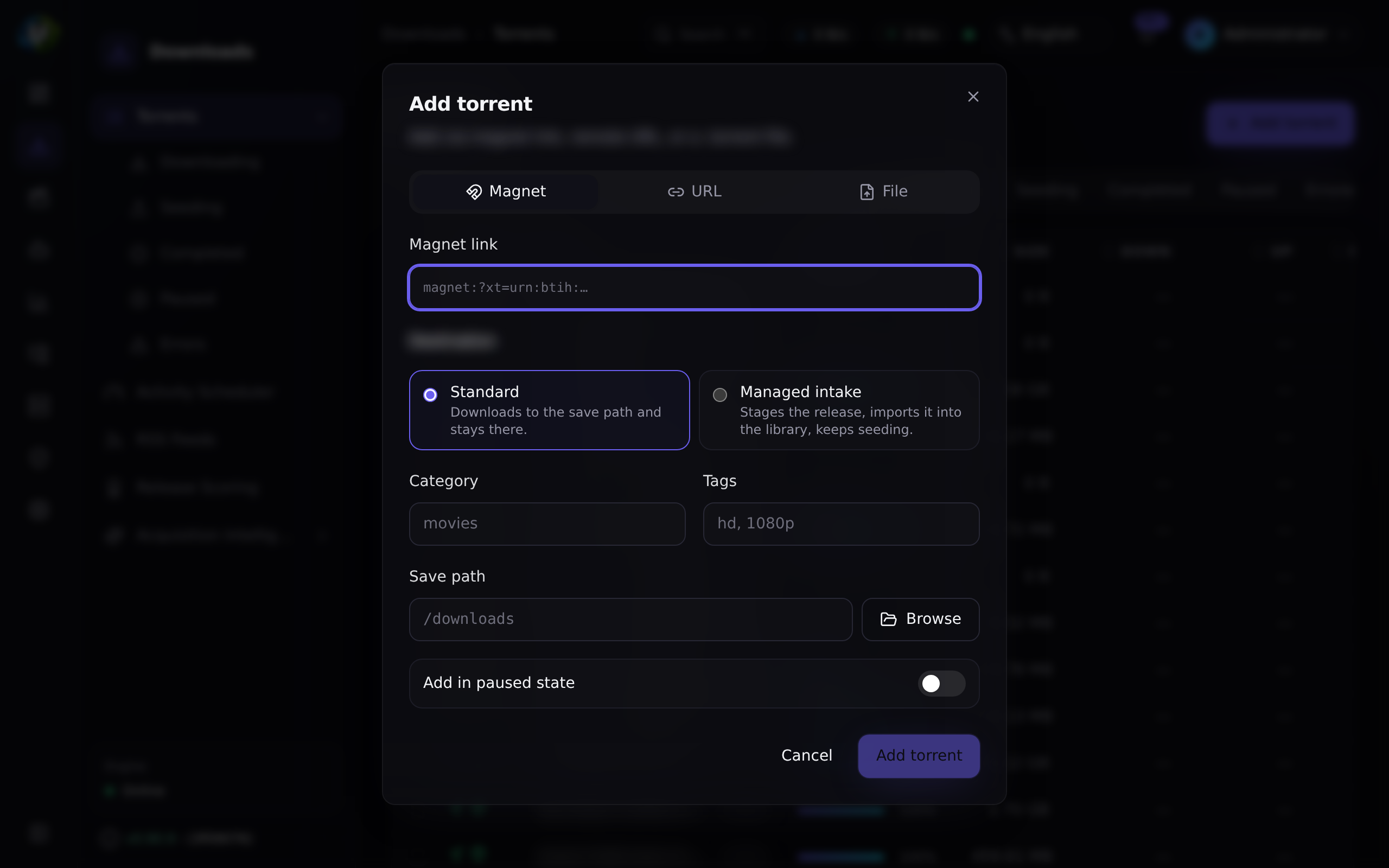
Click Add torrent.
-
The dialog offers three tabs — Magnet, URL, and File:
Tab Give it Use when Magnet magnet:?xt=urn:btih:…You copied a magnet link. URL An https://…/x.torrentlinkThe indexer/site gives you a .torrentURL.File A .torrentfile (click or drag-and-drop)You downloaded the .torrentalready. -
Optionally set Save path, Category and Tags. Leave the save path blank to use the engine's default (
/downloadsin the bundled stack). -
Click Add.
For a safe, legal first test, use any Linux distribution's official torrent — for example the Ubuntu, Debian, or Fedora ISO torrents published on their download pages.
Expected result: a toast confirms the torrent was added, and a new row appears in the Torrents table within a couple of seconds — pushed to your browser over WebSocket, with no page refresh.
Step 8 — Watch it complete
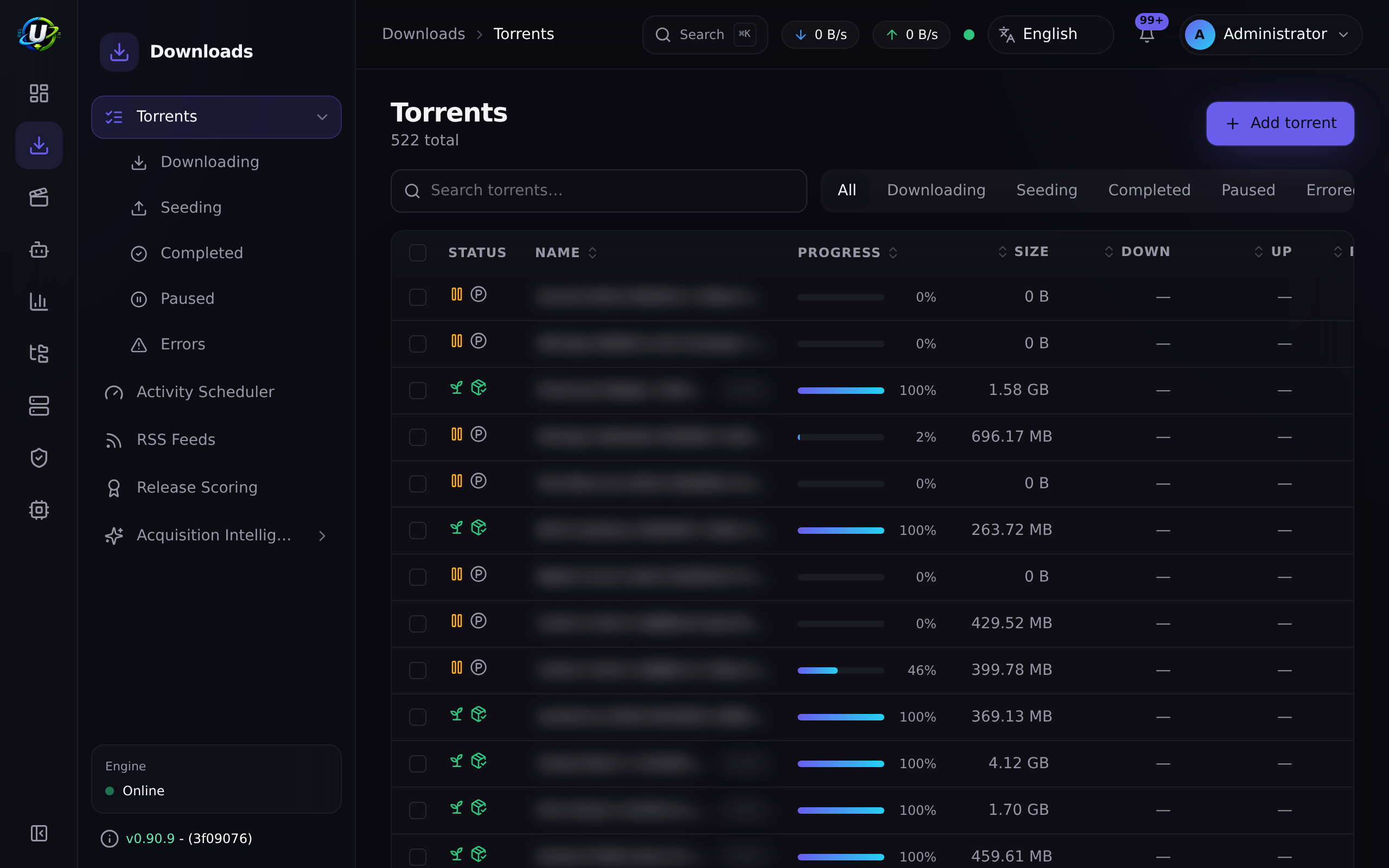
Stay on Downloads → Torrents. The engine is polled roughly every 2 seconds and the normalized results are pushed to your browser live.
Watch for:
- Progress climbing past 0%.
- A non-zero Down rate in the row and in the top bar.
- Peers/seeds greater than zero.
- The state moving to Seeding at 100%.
The sidebar's Torrents sub-menu lets you filter to Downloading, Seeding,
Completed, Paused and Errors — those are URL-driven views
(/torrents?state=…), so they are bookmarkable.
Expected result: the torrent reaches 100% and switches to Seeding. Your first download is done.
Video coming soon.
Examples
Bring up the full recommended stack in one command
docker compose \
  --profile qbittorrent \
  --profile prowlarr \
  --profile flaresolverr \
  up -d --build
That gives you: PostgreSQL, Redis, the UltraTorrent backend, the UltraTorrent frontend, a qBittorrent engine, a Prowlarr indexer manager, and FlareSolverr (which solves Cloudflare anti-bot challenges for indexers that need it).
Verify the API is healthy without logging in
curl -fsS http://localhost:8080/api/system/live   && echo "live OK"
curl -fsS http://localhost:8080/api/system/ready  && echo "ready OK"
Both probes are public and are what container orchestrators should health-check.
Tail just the backend while you debug
docker compose logs -f backend
Troubleshooting
| Symptom | Likely cause | Fix |
|---|---|---|
POSTGRES_PASSWORD is required on up | .env missing or the value is blank. | Set POSTGRES_PASSWORD (alphanumeric) in .env. |
ADMIN_PASSWORD is required on up | Same, for the bootstrap admin. | Set ADMIN_PASSWORD in .env. |
| Backend exits immediately in production | JWT_ACCESS_SECRET / ENCRYPTION_KEY unset, under 32 chars, a known default, or identical to each other. | Regenerate both with openssl rand -base64 48; they must differ. |
Web UI does not load on :8080 | Port already in use (very common on NAS). | Set FRONTEND_PORT in .env, then docker compose up -d. |
| Login rejects the admin password | The seed only runs on first boot, so a later .env change does not rewrite the password. | Reset the password from a shell, or start over from an empty database volume. |
| Engine test fails with a connection error | You used localhost instead of the container name. | Use http://qbittorrent:8080 or host rtorrent, port 5000. |
Engine test fails with 401/403 (qBittorrent) | Still using the first-run temporary password. | Set a permanent Web UI password in qBittorrent, then update the engine. |
| Torrent added but stays at 0% forever | No peers, a dead tracker, or DHT off. | Try a known-good Linux ISO torrent. On the bundled rTorrent, DHT is off by default (RT_DHT=off) because that build can crash on a DHT internal_error; trackers and PEX still find peers. |
| Auto-download does nothing, "blocked internal address" in logs | The SSRF guard rejected a private-IP indexer link. | Add the indexer host to SSRF_ALLOW_HOSTS (keep prowlarr). |
Downloaded files owned by root | The engine ran as root. | Set PUID/PGID in .env to the user that owns your downloads folder (id someuser). |
Deeper diagnosis lives in Troubleshooting.
Tips
PUID / PGID before you download anything realIf your media folder is owned by, say, the plex user, run id plex and put
those numbers in .env as PUID/PGID. Downloads will be written as that user
without you having to chown anything afterwards. Fixing ownership later is far
more annoying.
Account → Profile hosts Two-Factor Authentication (TOTP), change-password and active sessions. Do it before you expose this to a network.
There is no TLS on the plain Compose stack. Put it behind a reverse proxy with a certificate — see Reverse proxy and TLS, and read Security before you open anything up.
The SPA is just one client of the REST API. Every action on this page has an HTTP equivalent — see the API reference.
FAQ
Do I need Prowlarr? No. You can add torrents by magnet, URL or file forever without any indexer. You need an indexer only when you want UltraTorrent to search for releases on your behalf (Smart Download, missing-episode auto-acquire).
Can I use my existing rTorrent or qBittorrent? Yes. Skip the bundled profiles and point the engine at your existing instance in Downloads → Engines. It must be reachable from the backend container, and the paths it reports must be visible to UltraTorrent (see Core Concepts → Paths).
Where do downloaded files actually go?
Into the downloads Docker volume, mounted at /downloads in both the backend
and the engine. FILE_MANAGER_ROOTS (default /downloads) is the hard boundary
the file manager and Media Manager may never escape.
Can I run more than one engine? Yes. Register several in Downloads → Engines; one is marked Default. The UI and API always speak normalized, engine-agnostic data.
Is any feature paywalled? No. UltraTorrent is a single open-source community product (AGPL-3.0-or-later). Every module ships in this one repository; access is controlled only by RBAC permissions — see Permissions.
Does UltraTorrent scrape IMDb? No. The IMDb provider works from user-provided IMDb datasets and/or a licensed IMDb API, configured in Media → Settings → IMDb. It never scrapes IMDb web pages.
Checklist
Work down this list. Every box should be tickable before you move on.
-
docker compose psshowspostgres,redis,backend,frontendand an engine, all running. -
curl http://localhost:8080/api/system/readyreturns success. - You can log in at
http://localhost:8080with yourADMIN_USERNAME/ADMIN_PASSWORD. - The Dashboard renders with the full sidebar.
- Downloads → Engines shows one engine with a Default badge and a passing Test.
- (Optional) Downloads → Indexers shows one indexer with an OK status badge.
- Downloads → Torrents shows a torrent you added.
- That torrent reached 100% and is now Seeding.
- You enabled 2FA on Account → Profile.
Expected results at a glance
| Where | What you should see |
|---|---|
| Terminal | All containers running; backend log shows migrations applied, no boot refusal. |
/dashboard | Live transfer rates in the top bar; connection status shows connected. |
/engines | One engine, Default badge, test OK. |
/torrents | A row at 100%, state Seeding, ratio climbing. |
Next steps
- Understand what you just built → Core Concepts
- See how the pieces fit together → Architecture Overview
- Do it again, slowly and with every detail → My First Download
- Automate a TV show → Automating TV shows
- Organise what you downloaded → Building a movie library
See also
- Docker Compose install — every service, volume and profile explained.
- Environment variables — the complete
.envreference. - Engines — the engine seam and supported engines.
- Indexers — Torznab/Newznab indexer configuration.
- Prowlarr — the optional indexer-manager companion.
- Torrents — the full transfer-management module.
- Security — before you expose this anywhere.
- Glossary — every term, defined.